
How to Diarize Speakers in Offline Transcriber
Speaker diarization automatically detects and labels different speakers in your audio or video files. Instead of one continuous transcript, you'll get organized text that shows who said what—perfect for meetings, interviews, podcasts, and any recording with multiple people.
How It Works
The diarization feature analyzes voice characteristics—pitch, tone, speaking patterns—to distinguish between different speakers. Each speaker is automatically assigned a label (SPEAKER00, SPEAKER01, SPEAKER02, etc.) that appears before their dialogue in the transcript.
After diarization, you can rename these generic labels to actual names like "Interviewer," "Dr. Smith," or "Client" using the speaker menu.
How to Diarize Speakers
Complete Your Transcription
First, transcribe your audio or video file as usual. Speaker diarization is applied after transcription is complete.
Click Diarize Speaker
Once transcription is finished, click the Diarize Speaker button in the left sidebar to open the configuration dialog.
Configure Speaker Settings
Set the speaker count parameters to help the AI identify speakers more accurately.
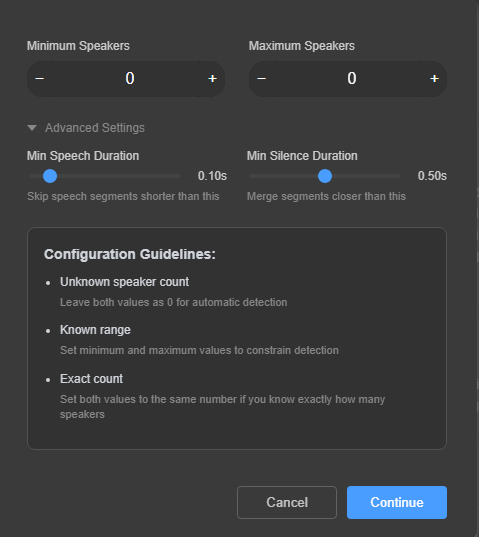
Start Diarization
Click Diarize Speaker to begin the speaker identification process. Your transcript will be updated with speaker labels.
Speaker Configuration Options
The configuration dialog lets you help the AI by specifying how many speakers are in your recording:
Advanced Settings
Click Advanced Settings to access fine-tuning options for more precise speaker detection:
Click Reset Default to restore these settings to their recommended values.
Managing Speakers
After diarization, each speaker segment shows a label (SPEAKER00, SPEAKER01, etc.) with a three-dot menu ⋯ on the right. Click this menu to access speaker options:
Tips for Best Results
✓ Use clear audio
Good audio quality with minimal background noise helps the AI distinguish between speakers more accurately.
✓ Avoid overlapping speech
When multiple people talk simultaneously, speaker identification becomes more difficult. If your recording has significant overlapping speech, consider using the "Contains overlapped speech" option during transcription instead.
✓ Specify speaker count when known
If you know how many speakers are in the recording, setting the exact count improves accuracy and processing speed.
✓ Similar voices may be grouped
Speakers with very similar vocal characteristics might occasionally be labeled as the same person. Review the transcript and use Change speaker name to correct any misidentifications.
Use Cases
- Meeting transcription: Identify who said what in team meetings, board meetings, or conference calls
- Interview transcription: Clearly separate interviewer questions from interviewee responses
- Podcast transcription: Label different hosts and guests throughout the episode
- Legal depositions: Distinguish between attorneys, witnesses, and other participants
- Medical consultations: Separate doctor and patient dialogue for accurate records
- Focus groups: Track contributions from multiple participants
Troubleshooting
Too many speakers detected
If the AI is detecting more speakers than actually present, try setting an exact speaker count or maximum limit. You can also increase the Minimum Speech Duration to filter out brief sounds being misidentified as separate speakers.
Speakers being merged together
If two different speakers are being labeled as one, they may have similar voice characteristics. Try decreasing the Minimum Silence Duration to create more speaker boundaries, or manually correct using Change speaker name after diarization.
Fragmented speaker segments
If one speaker's dialogue is being split into many small segments, increase the Minimum Silence Duration to merge nearby segments from the same speaker.
Privacy Note
Speaker diarization is processed 100% locally on your computer. No audio data is uploaded to any server. Your recordings remain completely private and secure on your device.